Tasks
Introduction
This manual provides instructions for using the Tasks section in the Sira platform. The Tasks section allows administrators to view and manage their tasks using a calendar interface.
Accessing the Tasks Section
- Log in to your Sira admin account.
- Navigate to the Tasks section in the left sidebar.
Tasks Calendar Overview
The Tasks Calendar provides a visual representation of tasks for the selected month. It allows you to:
- View tasks by day, week, or month.
- Navigate between months.
- Identify days with tasks.
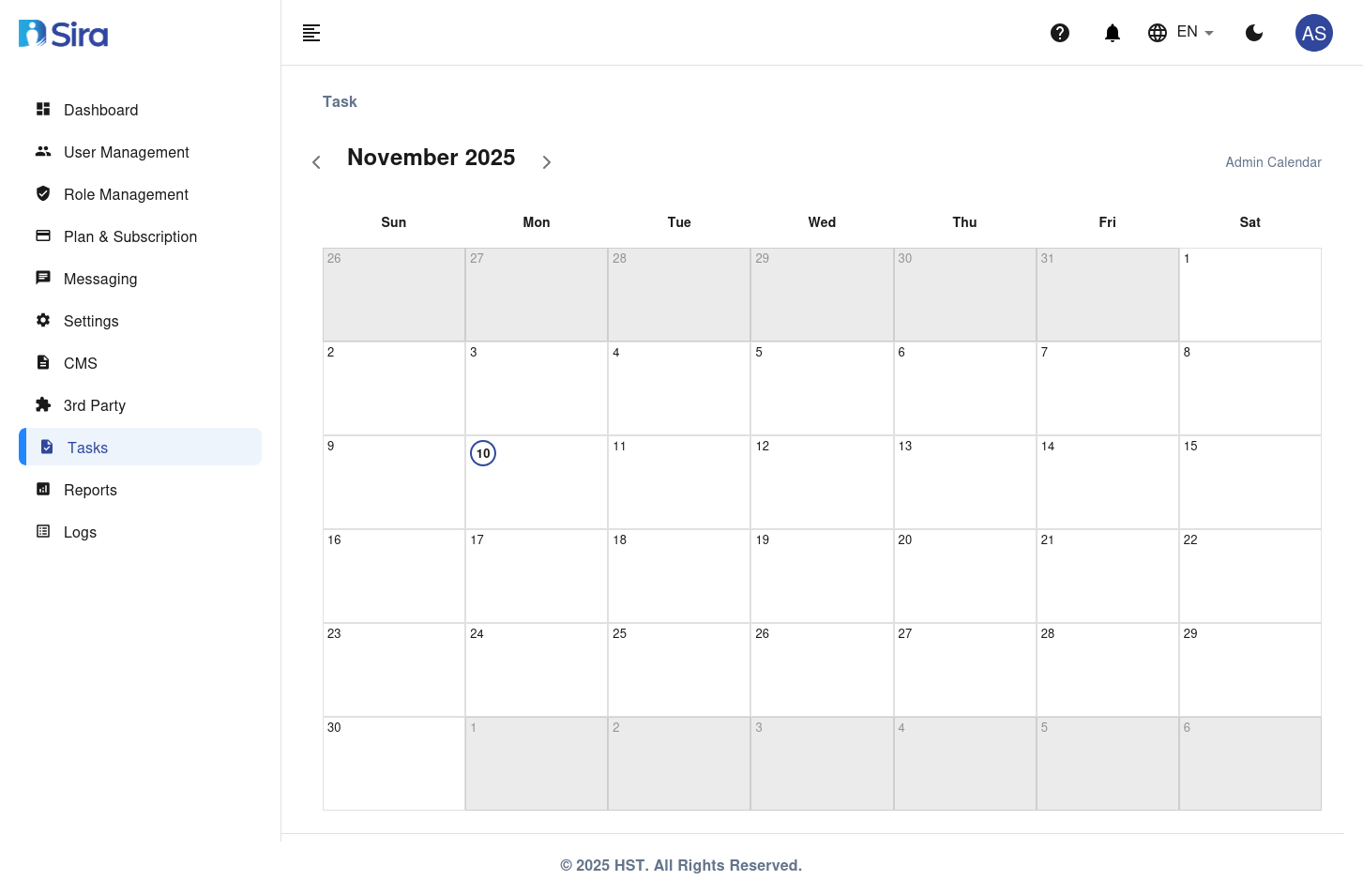
Calendar Layout
- Month Navigation: Use the
<and>buttons at the top to navigate between months. - Current Month and Year: Displayed at the top center of the calendar.
- Days of the Week: Displayed at the top of the calendar grid (Sun, Mon, Tue, Wed, Thu, Fri, Sat).
- Dates: Each cell in the grid represents a day of the month.
- Current Day: Highlighted with a blue circle and filled background.
- Days with Tasks: Displayed with a dot or specific indicator (if applicable).
Calendar Controls
- Admin Calendar Label: Located at the top right, indicating the calendar is for administrative purposes.
- Month and Year Navigation: Click the
<button to go to the previous month, and the>button to go to the next month.
Viewing Tasks
-
Navigate to the Desired Month:
- Use the
<and>buttons to move to the month you want to view.
- Use the
-
Identify Days with Tasks:
- Days with tasks may be indicated with a dot or other visual markers.
-
View Task Details:
- Click on a specific day to view the tasks scheduled for that day (if this functionality is available).
Managing Tasks
Adding a Task
-
Navigate to the Desired Date:
- Use the calendar to find the date you want to add a task to.
-
Add a Task:
- Click on the desired date.
- Fill in the task details in the form or dialog that appears (if available).
- Save the task.
Note: The specific steps for adding a task may vary depending on the platform's implementation.
Editing a Task
-
Navigate to the Task:
- Find the date with the task you want to edit.
-
Edit the Task:
- Click on the task to open its details.
- Make the necessary changes to the task details.
- Save the changes.
Note: The specific steps for editing a task may vary depending on the platform's implementation.
Deleting a Task
-
Navigate to the Task:
- Find the date with the task you want to delete.
-
Delete the Task:
- Click on the task to open its details.
- Select the option to delete the task.
- Confirm the deletion.
Note: The specific steps for deleting a task may vary depending on the platform's implementation.
Troubleshooting
| Issue | Solution |
|---|---|
| Calendar not loading | Refresh the page or check your internet connection. |
| Unable to add/edit/delete tasks | Ensure you have the necessary permissions and try again. |
| Incorrect date navigation | Make sure you are using the correct navigation buttons (< and >). |
Contact Support
For further assistance, contact the support team at [support email/phone].